Tools
Tools contain advanced year configuration options.
Warning
Tools should only be used by authorized personnel.
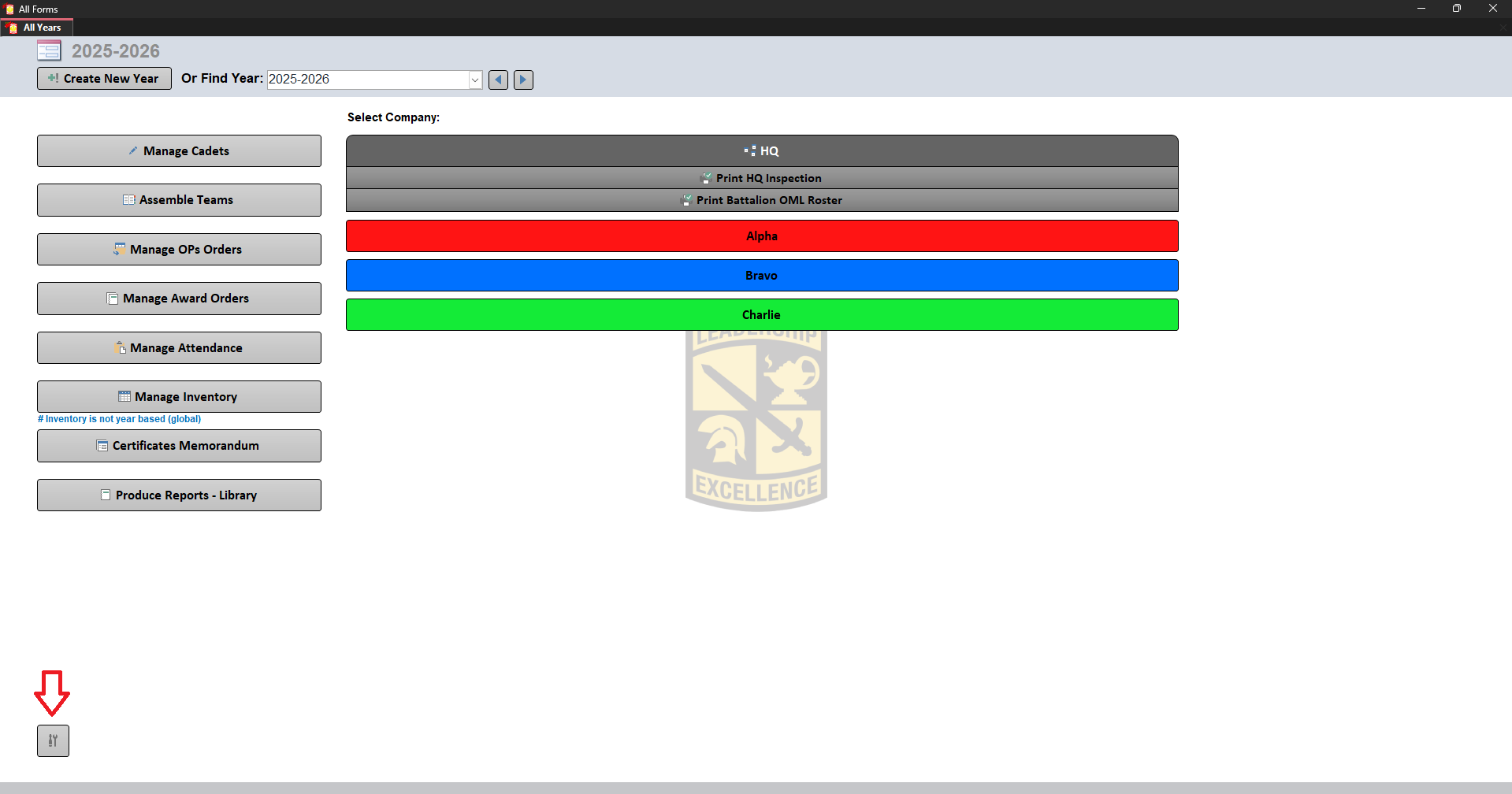
The Tools menu can be opened from the bottom left of the year selection screen. Tools allow users to configure the selected year, manage organizations, create positions, manage awards, and finalize year data.
Year Configuration
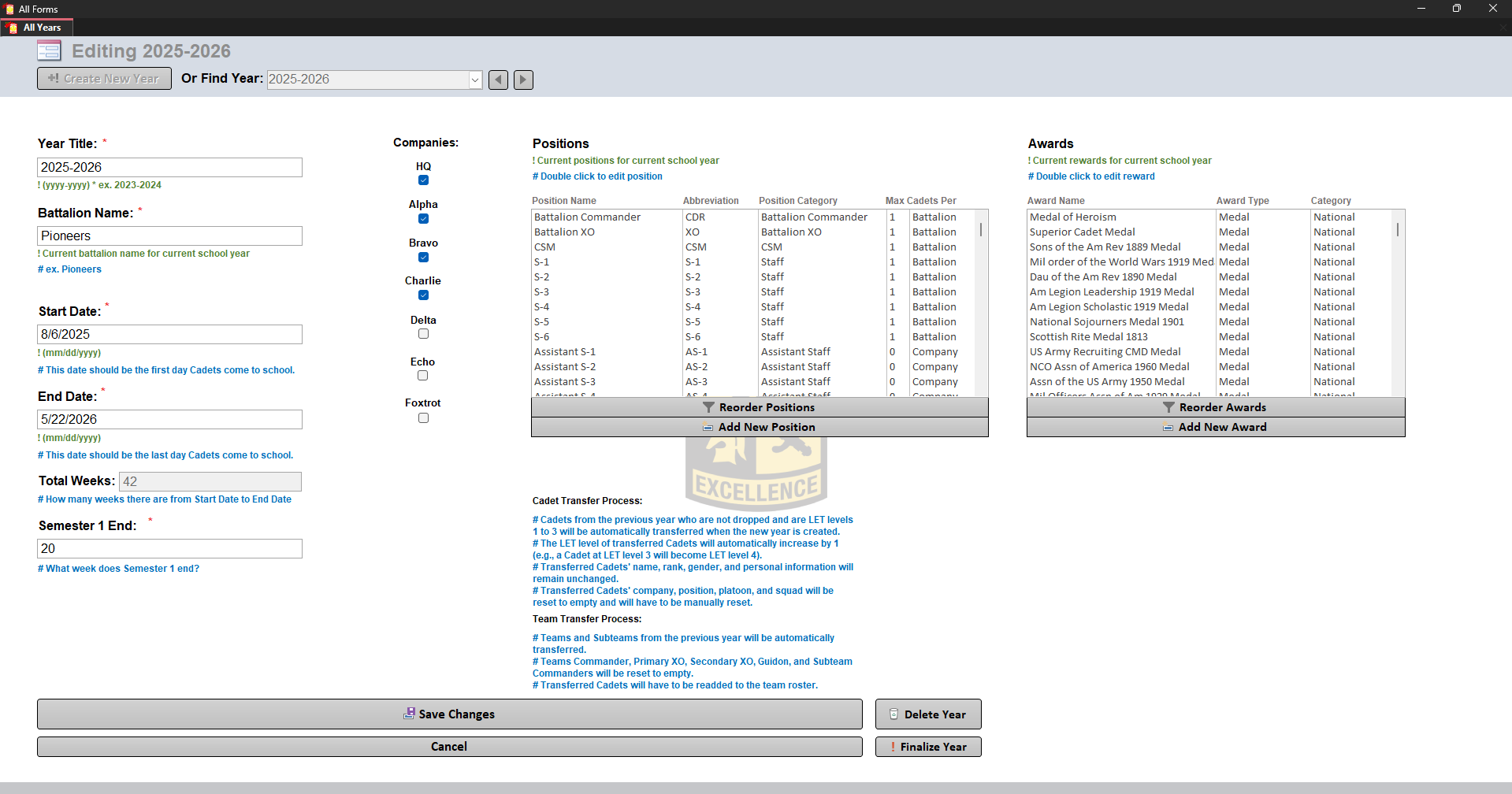
When opening Tools, the selected year's configuration can be modified.
The following information can be managed:
| Field | Description |
|---|---|
| Year Title | The name of the school year |
| Battalion Name | The official name of the battalion |
| Start Date | The first day Cadets attend school for the year |
| End Date | The last day Cadets attend school for the year |
| Semester 1 End Week | Determines when the first semester ends |
Companies
On the right side of the year information, enabled Companies can be selected.
Companies determine which organizational units are available for the selected year.
To enable a Company:
- Check the Company checkbox.
- Click Save Changes.
If a Company is disabled:
- The Company cannot be assigned to Cadets.
- Existing assignments to that Company are removed.
- The Company can be restored by enabling it again.
Positions
Positions control the battalion chain of command and determine where Cadets appear throughout reports.
Creating Positions
A position contains:
| Field | Description |
|---|---|
| Position Name | Full position name |
| Abbreviation | Short name |
| Category | Determines report visibility |
| Maximum Cadets | Assignment limit |
Position Categories
Every position is assigned a Position Category, which determines both the role's responsibilities within the battalion and how Cadets assigned to that position are displayed throughout All Forms.
Position Categories are used to:
- Control where positions appear on reports.
- Organize the chain of command.
- Determine which organizational level a position belongs to.
- Automatically place Cadets in the correct sections of reports, rosters, and organizational charts.
The available Position Categories are:
- Battalion Commander
- Battalion XO
- CSM
- Staff
- Assistant Staff
- Special Staff
- Company Leader
- Company Commander
- Company XO
- Company First Sergeant
- Company Guidon
- Color Sergeant
- Color Member
- Platoon Leader
- Platoon Sergeant
- Squad Leader
- Team Leader
- Squad Member
- Other
Cadets assigned to the Other category are not displayed on reports and are intended for positions that should not appear in the battalion's organizational structure or chain of command.
Position Limits
Limits determine how many Cadets can hold a position.
Available levels:
Examples:
1 Battalion
Only one Cadet in the entire battalion.
4 Squad
Four Cadets per squad.
Setting the limit to 0 allows unlimited assignments.
Editing Positions
To edit an existing position:
- Double-click the position.
- Modify the desired fields.
- Click Save Changes.
Alternatively, select the position and click:
Edit Position
Removing Positions
To remove a position:
- Select the position.
- Click Remove Position.
Remove Position
Reordering Positions
Click:
Reorder Positions
Use the arrow keys to move positions.
Positions are ordered:
Top = Highest
Bottom = Lowest
Awards
Awards are managed similarly to positions.
Awards determine which ribbons, medals, pins, and other recognitions are available for the selected year.
Creating and Editing Awards
Award fields include:
| Field | Description |
|---|---|
| Type | Award classification |
| Series | Award series |
| Leadership | Leadership number for N-Series awards |
| Award | Award number for N-Series awards |
| OML Points | Points awarded toward OML |
| Medal Name | Display name |
| Description | Award details |
| Award Icon | Image displayed for the award |
Award Types
Available award types:
- Arc Pin
- Medal
- Medallion
- Ribbon
- Shoulder Cord
- Other
Award Series
Available series:
- N-Series
- National
- Other
When N-Series is selected, the Leadership and Award fields combine into the final award identifier.
Example:
Leadership: 3 Award: 4
Result: N-3-4
Award Icons
Award icons can be assigned on the right side of the Awards section.
Recommended source:
https://www.supplyroomjrotc.com/army/
Saving Changes
Changes are not applied until:
Save Changes
is clicked.
To discard changes:
Cancel
Year Management
On the right side of Save Changes are options to manage the entire year.
Delete Year
Deleting a year permanently removes the year and all associated information.
Danger
Deleted years cannot be recovered.
Only delete a year if it was created incorrectly and is no longer needed.
Finalize Year
Finalizing a year locks the year from further changes.
A finalized year:
- Cannot have data modified.
- Keeps all records preserved.
- Allows reports to still be viewed.
- Can be reverted from Tools.
Warning
A year should only be finalized after the school year has ended and all information has been verified.
Creating a New Year
When creating a new year, clicking Save Changes will ask if you want to transfer Cadets from the previous year.
Selecting Yes will transfer:
- Active Cadets only.
- LET Levels 1 through 3.
Dropped Cadets will not transfer.
Transferred Cadet Information
The following information remains unchanged:
- Name
- Rank
- Gender
- Personal Information
The following information is reset:
- Company
- Position
- Platoon
- Squad
These must be manually assigned for the new year.
Team Transfer
Teams will automatically transfer to the new year.
This includes:
- Automatically generated teams.
- Manually created teams.
- Team structure.
- Sub-teams.
However, Cadet assignments do not transfer.
All team members must be manually added again, including:
- Team Commanders.
- Primary XOs.
- Team members.
- Team rosters.
This allows the new year's leadership structure to be rebuilt correctly.