Manage Cadets
The Manage Cadets page allows users to create, edit, organize, and manage all Cadets and Cadre within the battalion.
To access:
- Select a Company.
- Click Manage Cadets
The Manage Cadets page will open.
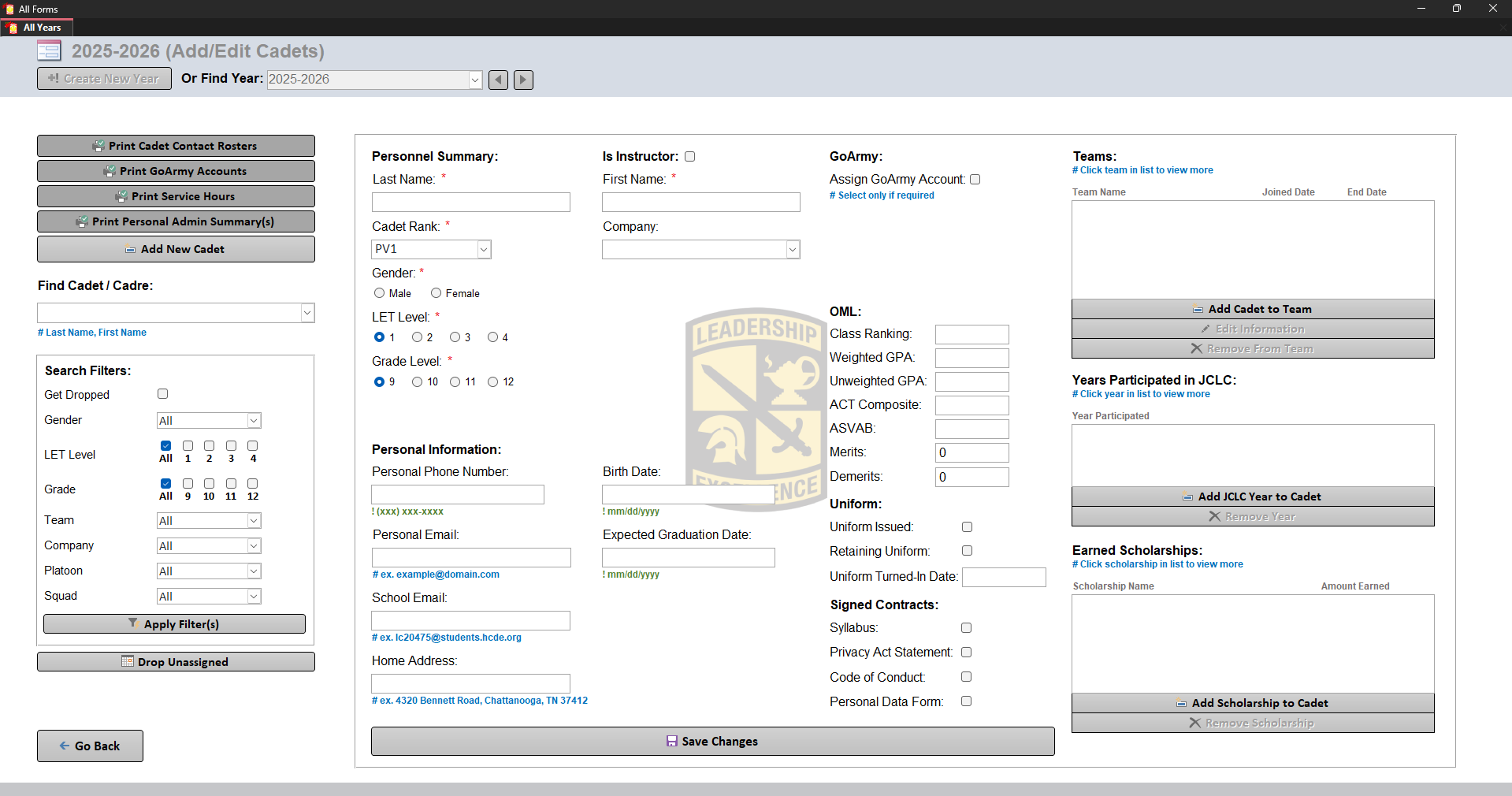
Main Page Layout
The left side contains:
- Reports
- Add New Cadet button
- Cadet search
- Filters
- Drop Unassigned button
The right side displays the selected Cadet's information.
Reports
The following reports are available:
- Print Cadet Contact Rosters
- Print GoArmy Accounts
- Print Service Hours
- Print Personal Admin Summary(s)
Finding a Cadet / Cadre
The Find Cadet / Cadre dropdown contains every Cadet and Cadre member in the battalion.
The format is Last Name, First Name
Example: Doe, John
To the right of the name, the system displays whether the person is dropped.
Search Filters
Filters can be used to quickly find specific Cadets.
Available filters:
Get Dropped
Controls whether dropped Cadets are included.
Gender
Filters by:
- Male
- Female
LET Level
Options:
- All
- LET 1
- LET 2
- LET 3
- LET 4
Grade
Options:
- All
- 9
- 10
- 11
- 12
Team
Options:
- All
- Unassigned
- Auto fills all teams
Company
Options:
- All
- Unassigned
- Autofills all selected companies
Platoon
Options:
- All
- Platoon 1
- Platoon 2
- Platoon 3
Squad
Options:
- All
- Squad 1
- Squad 2
- Squad 3
- Squad 4
- Squad 5
After selecting filters, click: Apply Filter(s)
The Cadet dropdown will update based on the selected filters.
Drop Unassigned
The Drop Unassigned button allows users to quickly drop Cadets who have not been assigned to a company.
This should only be used after:
- All Cadets have been entered.
- Companies have been assigned.
- Leadership assignments are complete.
Dropped Cadets:
- Have company information cleared.
- Will not appear on most reports.
- Can be restored.
Adding a New Cadet
To create a Cadet:
- Click: Add New Cadet
- Enter the required information.
- Click: Save Changes
Personnel Summary
The Personnel Summary section contains the Cadet's organizational information.
Fields:
- Last Name
- First Name
- Rank
- Gender
- LET Level
- Grade Level
- Company
- Block Position
- HQ Position (CCO-CGO)
- Platoon
- Squad
Positions
Block Position
The primary leadership position.
Examples:
- Company Commander
- Platoon Leader
- Squad Leader
HQ Position
Only appears when the selected position category is: Staff
Platoon
Only appears when the assigned position requires a platoon.
Squad
Appears when the position requires:
Personal Information
Contains:
- Personal Phone Number
- Personal Email
- School Email
- Home Address
- Birth Date
- Expected Graduation Date
GoArmy Information
The GoArmy section manages account information.
Fields:
- Assign GoArmy Account
- GoArmy Email
- GoArmy Password
The email and password fields only appear when: Assign GoArmy Account is enabled.
OML Information
The OML section contains academic and performance information.
Fields:
- Class Ranking
- Weighted GPA
- Unweighted GPA
- ACT Composite
- ASVAB
- Merits
- Demerits
This information is used for the Battalion OML.
Uniform Information
Tracks uniform status.
Fields:
- Uniform Issued
- Retaining Uniform
- Uniform Turned-In Date
Signed Contracts
Tracks required signed documents.
Fields:
- Syllabus
- Privacy Act Statement
- Code of Conduct
- Personal Data Form
Teams
The Teams section manages team assignments.
Examples:
- Drill Team
- Color Guard
- Raider Team
Adding a Cadet to a Team
Click: Add Cadet to Team
The system will ask for:
- Team
- Start Date
The team table displays:
- Team Name
- Joined Date
- End Date
The End Date only appears after the Cadet is removed from the team.
Editing Team Membership
Double click an existing team entry to edit:
- Joined Date
- End Date
JCLC Participation
Tracks Cadet Leadership Camp participation.
The table displays years such as: 23-24, 23-24 (Honor Grad)
Adding JCLC History
Click: Add JCLC Year to Cadet
Select:
- Participating year
- Honor Graduate status
Available years include the previous four years.
Removing JCLC History
Click the year entry to remove it.
Earned Scholarships
Displays scholarships earned by the Cadet.
The table shows:
- Scholarship Name
- Amount Earned
Adding a Scholarship
Click: Add Scholarship to Cadet
Enter:
- Scholarship name
- Amount earned
Removing a Scholarship
Click the scholarship entry.
Printing PAS
Existing Cadets can print the PAS found on the bottom left.
Saving Changes
Changes are not saved until Save Changes is clicked and confirmed. Clicking No will discard and revert any changes.
Dropping a Cadet
The Drop Cadet button removes the Cadet from active use.
When dropped:
- Company information is cleared.
- Cadet stops appearing on most reports.
- The action can be reverted.
Managing Instructors
At the top of the page is Is Instructor checkbox.
When enabled, the record changes from a Cadet to an Instructor.
Instructor Fields
Instructors only contain:
Personnel Summary
- Last Name
- First Name
- Rank
- Gender
Rank uses normal military ranks: PV1 - COL
Personal Information
Fields:
- Personal Phone Number
- Personal Email
- School Email
- Home Address
- Birth Date
Instructor Restrictions
Instructors:
- Cannot contain Cadet-specific information.
- Can be deleted.
Cadets:
- Cannot be deleted.
- Can only be dropped.